Organization Admin
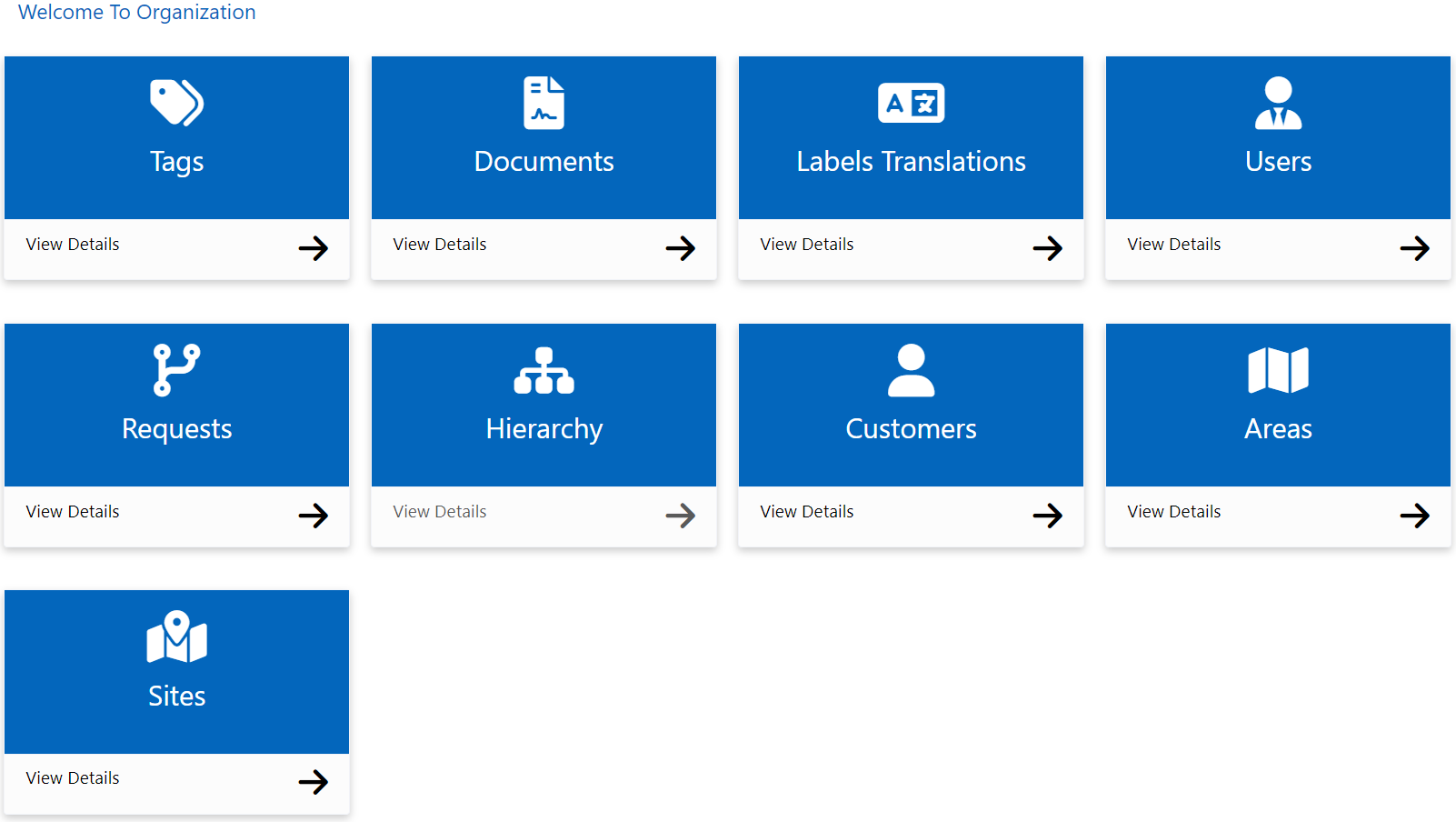
You can manage the various tags, documents, labels translations, users, user requests, Hierarchy of sites(customers), customers, areas & sites available in the application.
What is a tag?
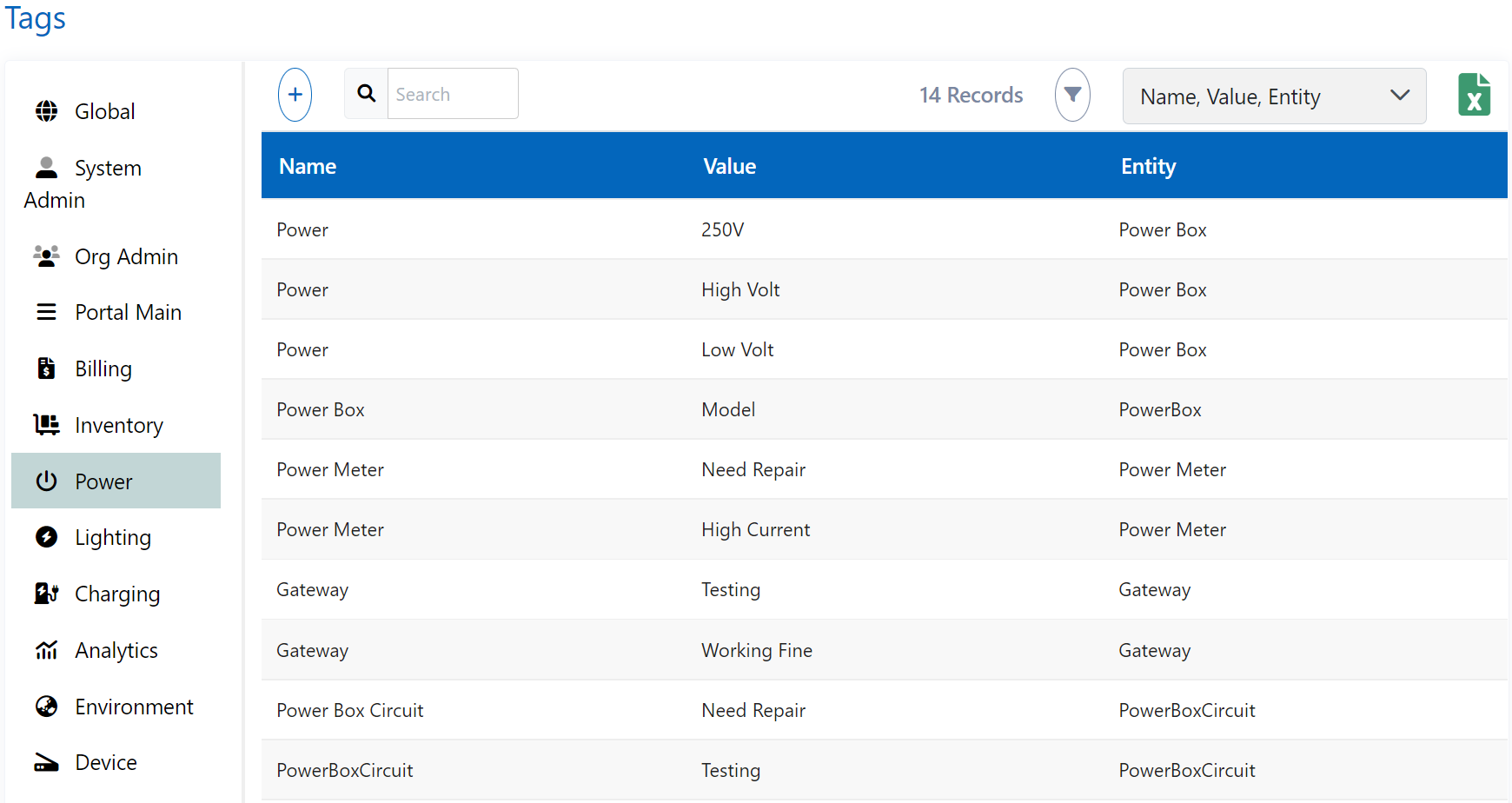
Tags can be understood as a mark of specific property for your understanding. You can see all the tags which are being used in the application in one place here and manage them and can also add new tags.
For example, a document can be given a tag of "Type: Identity" where Type is the tag name and identity is the tag value. Similarly, there can be a tag for a warehouse like "Status: Full" or "Type: Old".
How to add a tag?
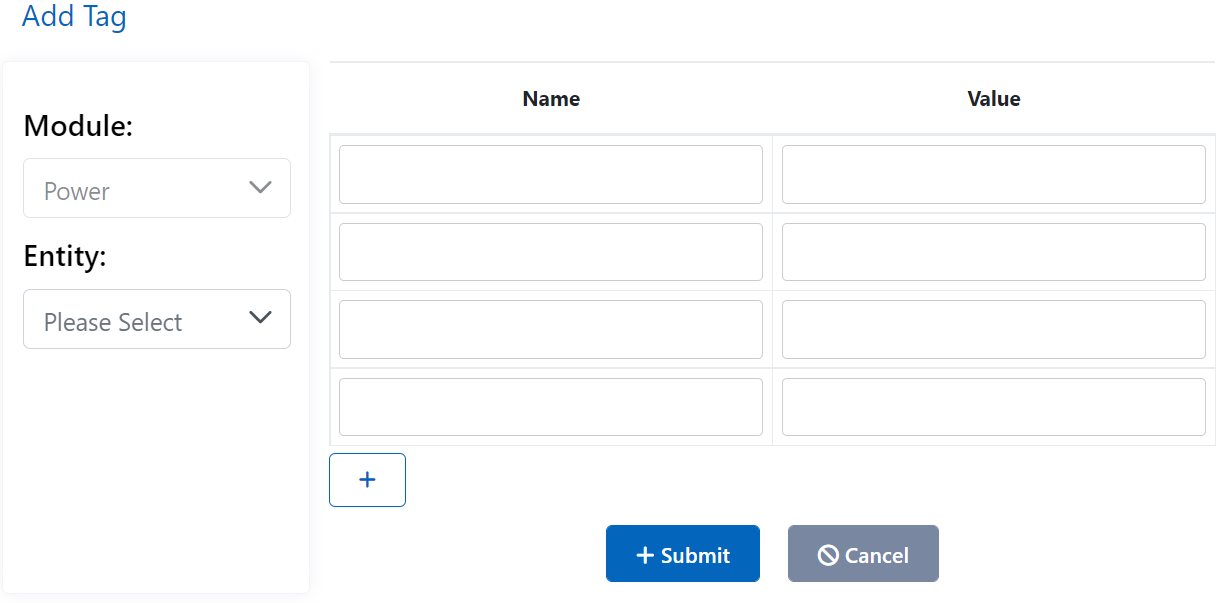
You can add a tag just by simply clicking on add tag and the required information is:
- Module: Select in which module you want to add the tag
- Entity: Select the entity on which the tag can be applied
- Name: You can give the name of the tag
- Value: You can enter the value of the tag here
You can also edit the existing tags and change their properties.
What are Documents?
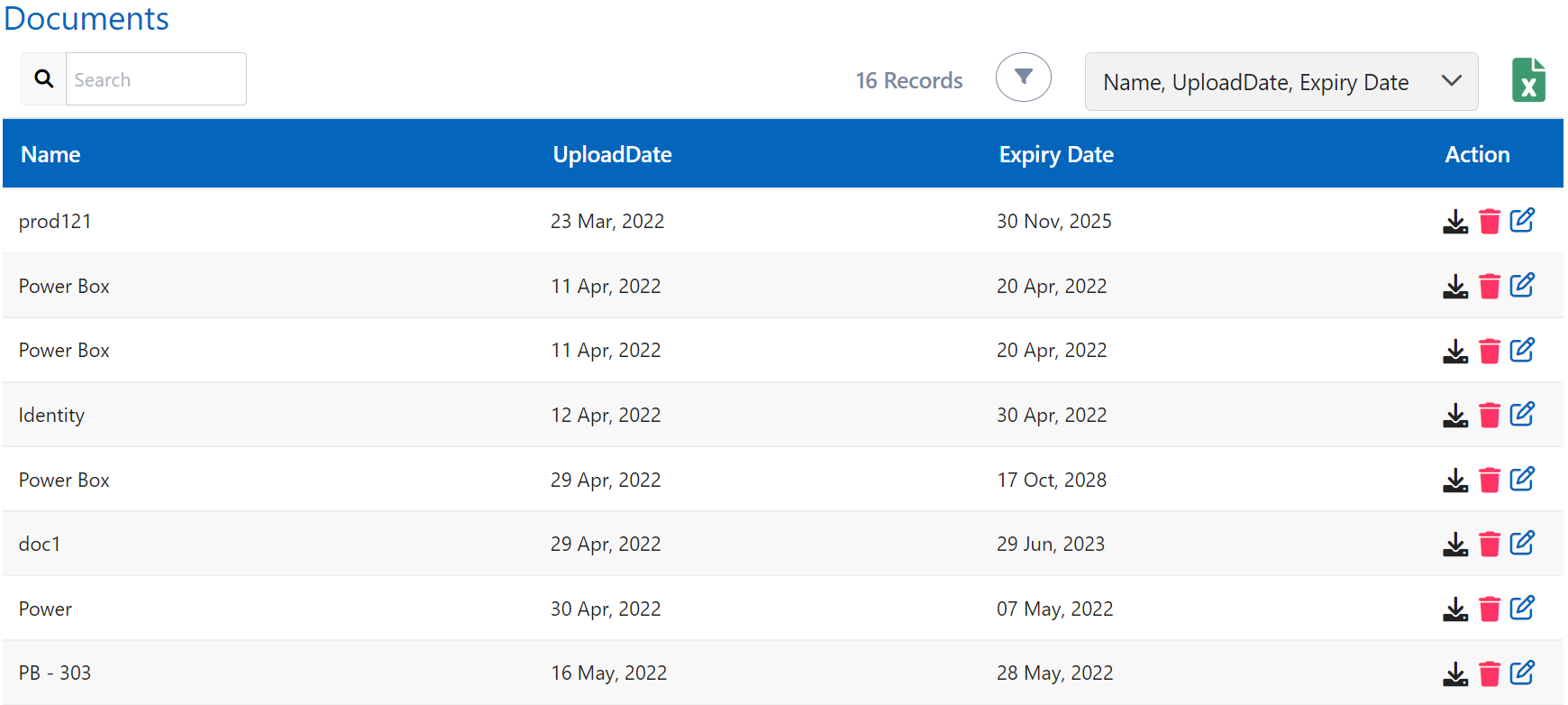
You can see all the documents which have been uploaded in the Smart and can also manage them from this single menu including user's documents, warehouse documents & any other uploaded documents in the application. You can download, delete, or edit the information related to the document.
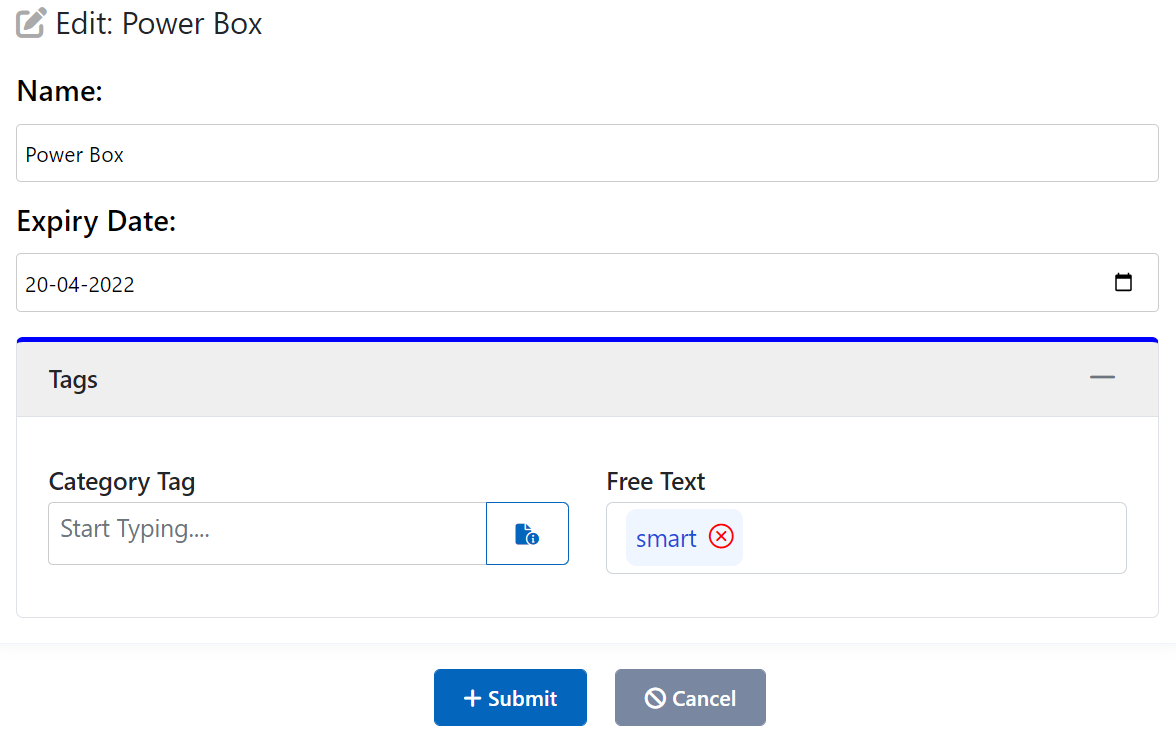
How to edit the Document information?
You can just simply click on the edit option and edit the Name, Expiry date, or tags of the document.
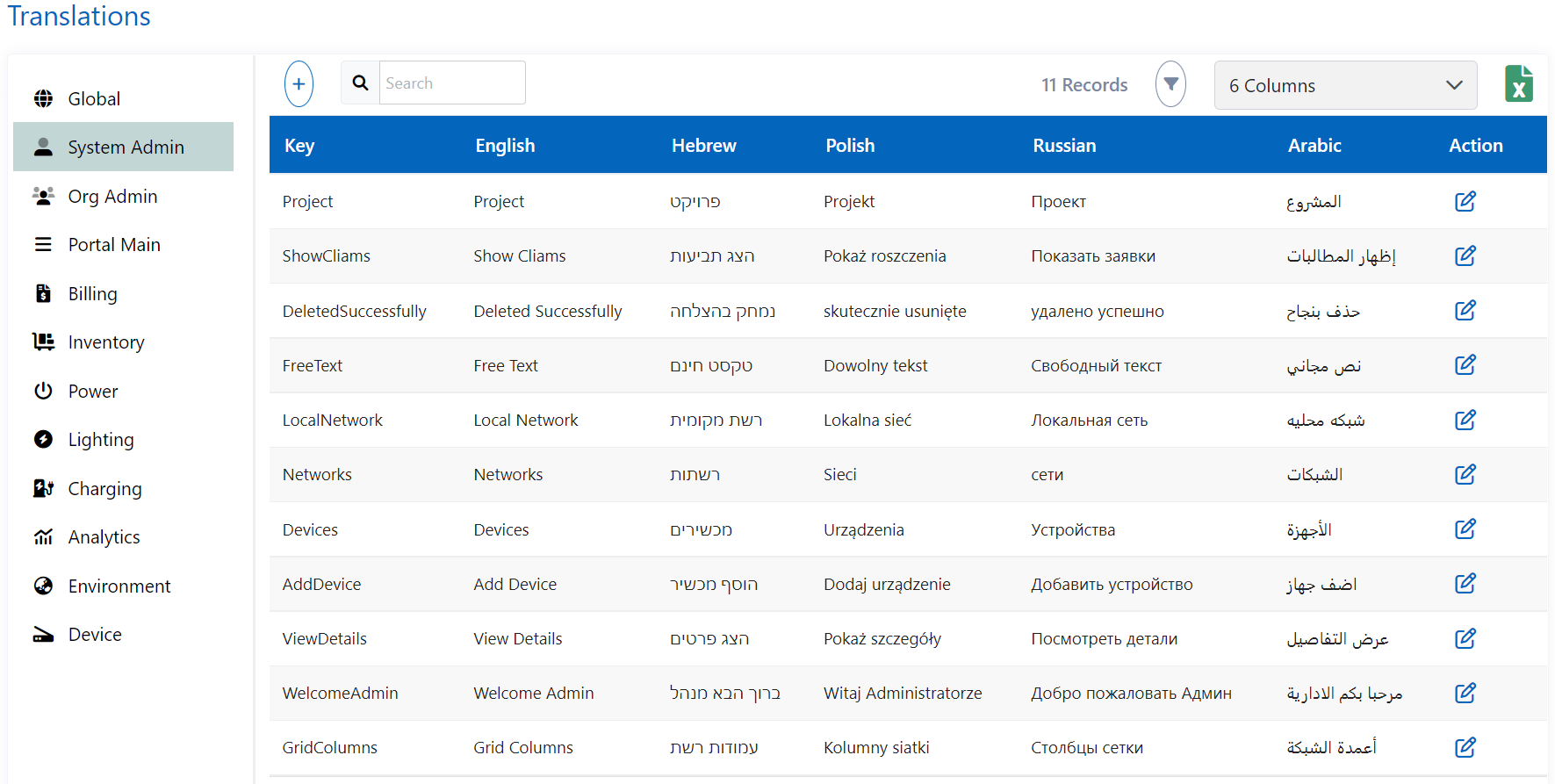
What are Labels Translations?
You can see, add and manage the translations of all the labels present in the Smart application in a single place here.
How to add a translation?
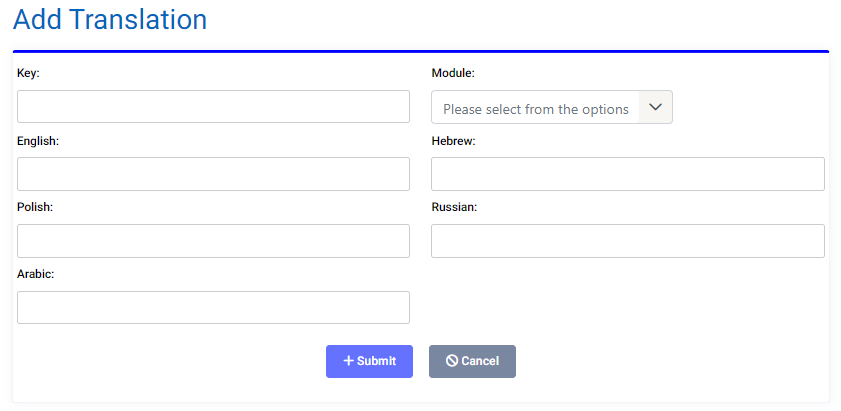
You can add a translation in any module or globally just by clicking add translation. The required information will be:
- Key: You must enter a unique key for the translation
- Module: You must select the mode in which you want to show the label translation
- The rest are respective label translations
You can also edit the existing labels translations.
Users
You can add & manage all users of the Smart application and can also edit their related details and documents.
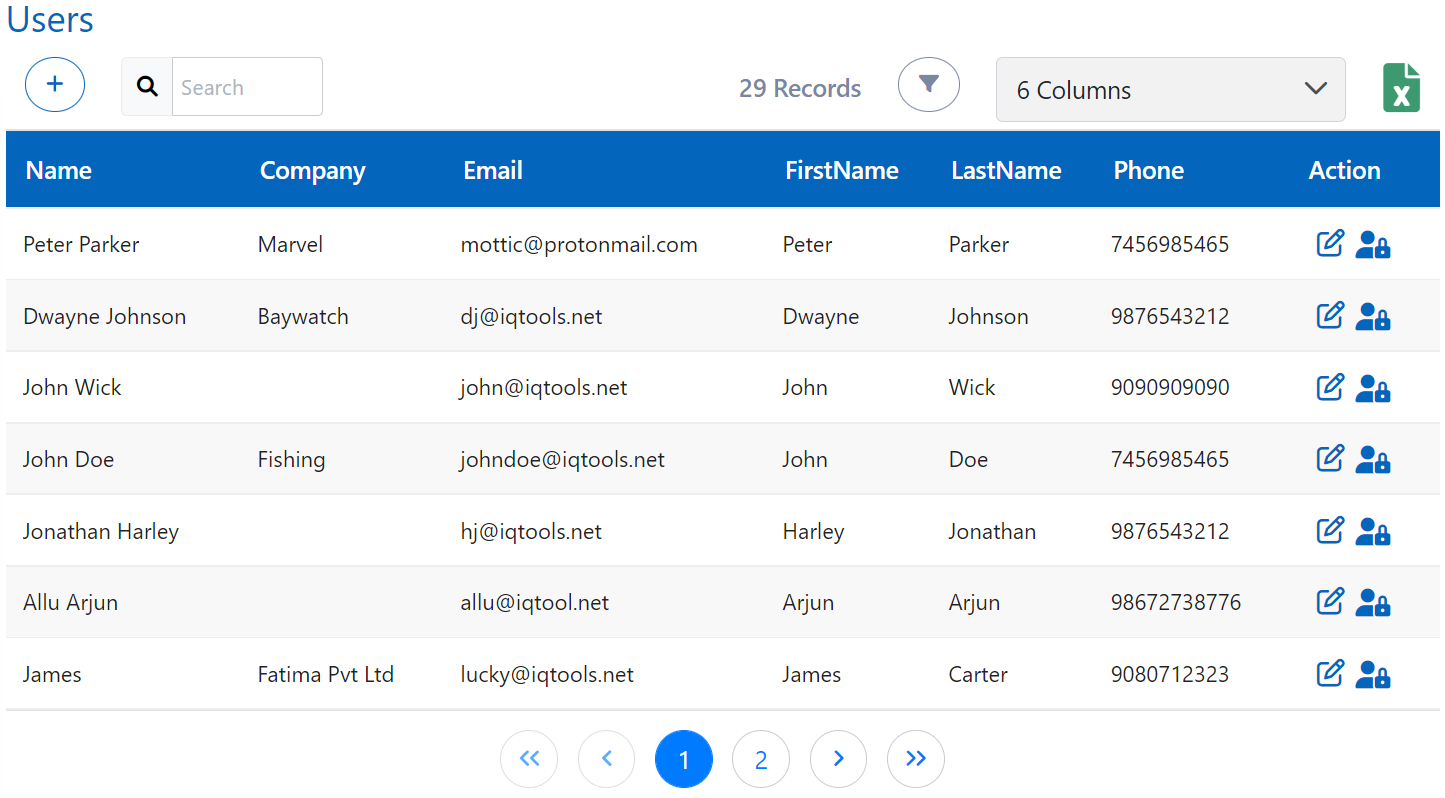
How to add a User?
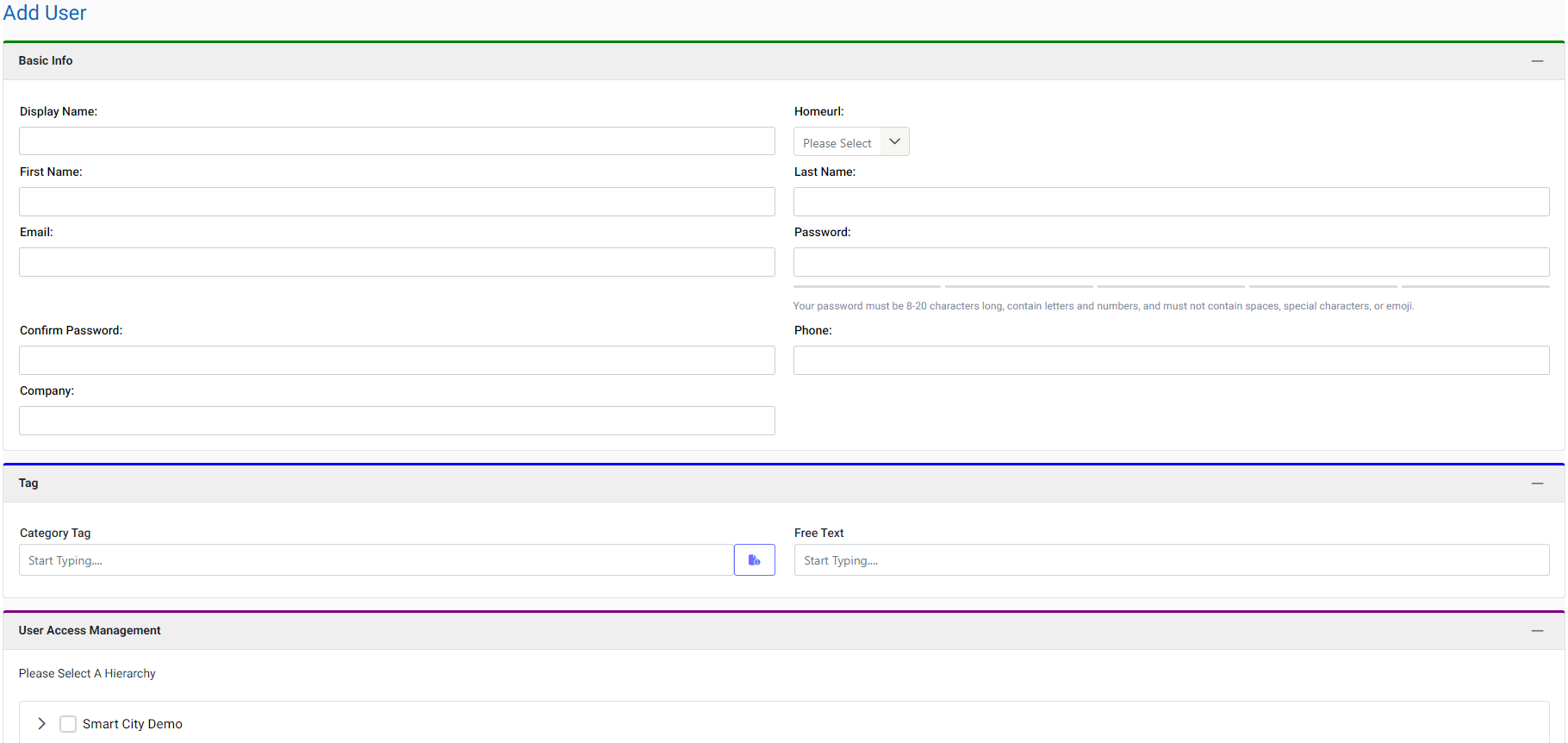
You can add a user and the required details are:
- Basic Info: Display name, First name, Last name, Email, Password, Phone, Company, HomeURL (the page that will be opened whenever the user sign-in and by default, it will be the Profile page)
- Tag: Any tag which can be applied and free text available to mention for the user
- User Access Management: Specify the access of the user hereby selected in the hierarchy
- Assign Roles: Select the role for the user and roles are already defined by the system admin
- Documents: Upload documents related to the user here

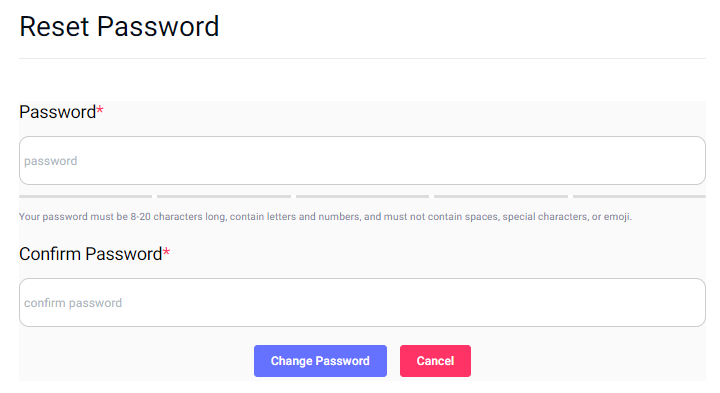
You can also edit the existing users and can also change the password of any user without the need for an old password.
Requests
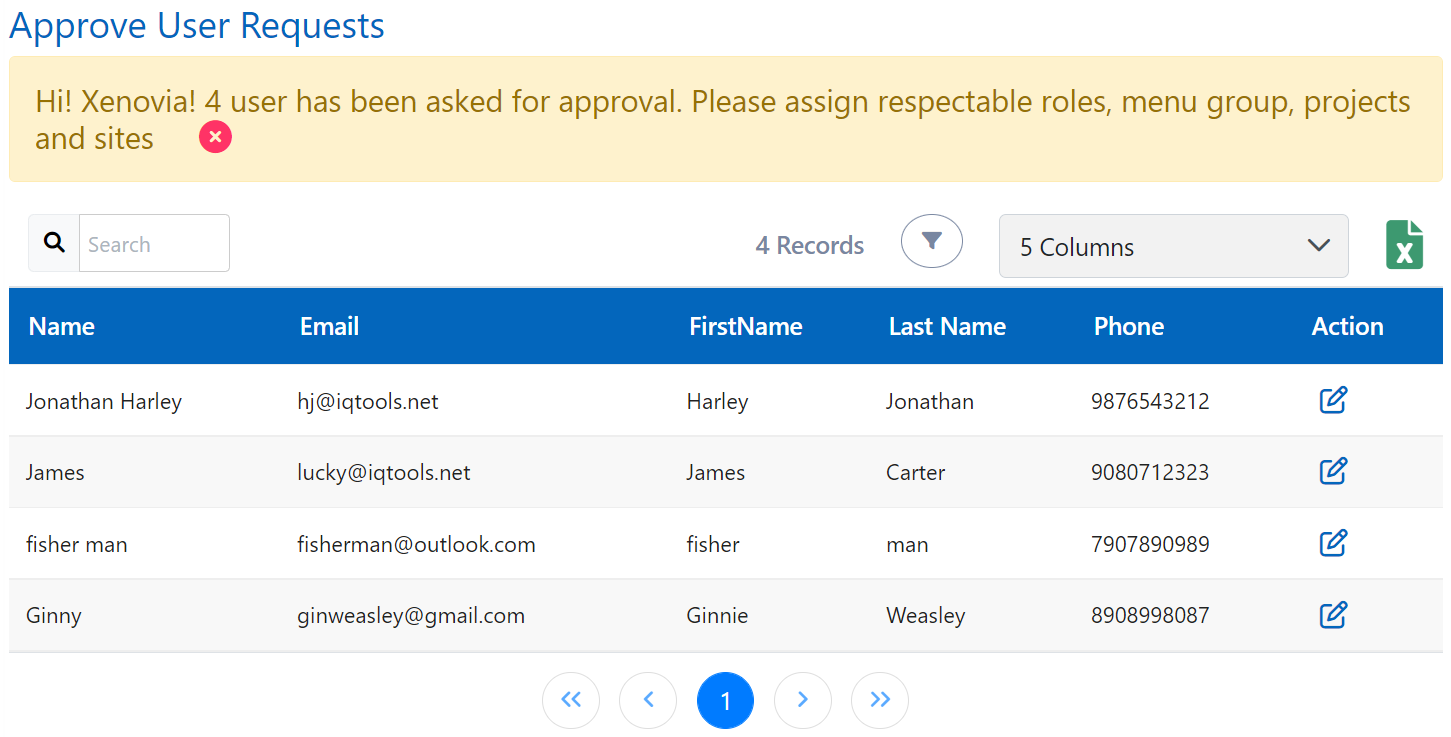
You can see the sign-up requests here and decide whether to approve them or not. If you want to approve it then click approve from the edit. If you don't want to approve the user then leave the request as it is.
Hierarchy
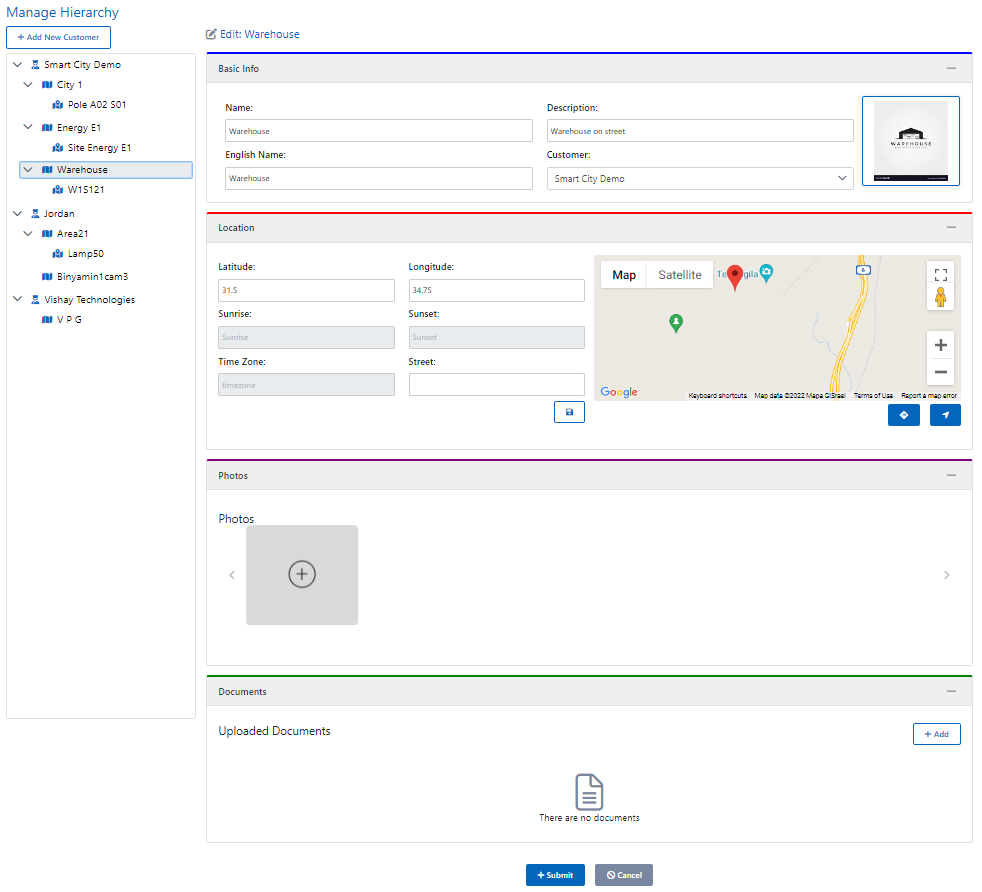
You can see and manage the hierarchy of various customers, areas, & sites. You can also edit the particular customer, area, or site. You can edit the basic info, location, photos, tags (only for customers), and documents. You can also add Customers from the hierarchy.
Customers
A customer is a kind of project that we need to complete by providing the purchased services and goods. It can have multiple areas and the area can have multiple sites to work.
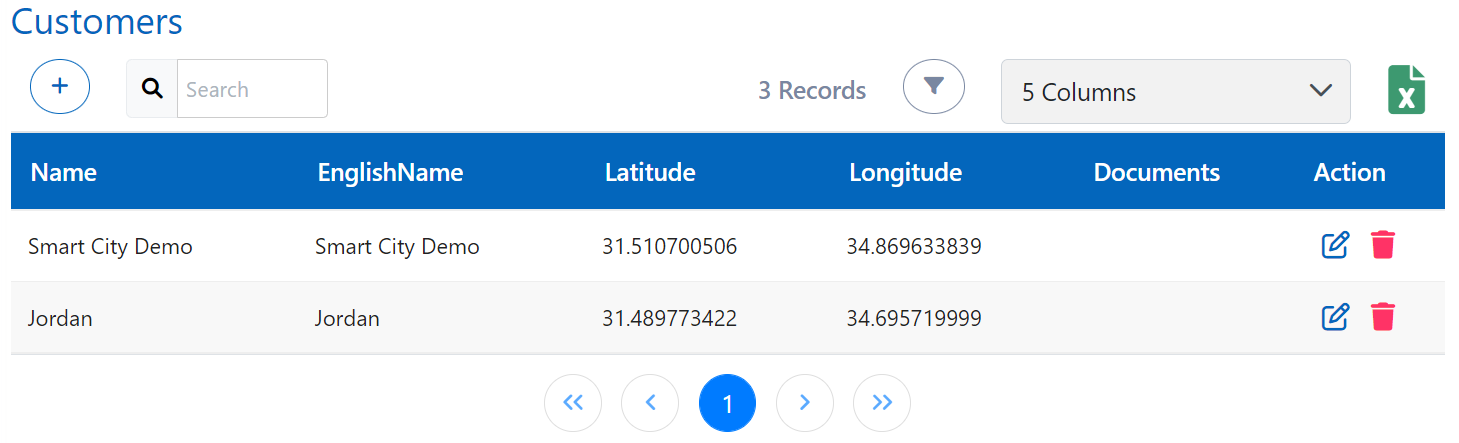
How to add a Customer?
You can add a customer and the required details are:-
Basic Info -
- Name: You have to give a name for the customer and it is mandatory
- Description: You have to describe the customer and it is mandatory
- English Name: You have to give the English translation for the name of the customer
- Language: You can choose your favorable (native) language from the available languages
- Logo: You can add a logo to aid and promote identification and recognition
Location - You can select the location of the customer from the map or can input it with the help of latitude & longitude. You can also provide any additional address in the street textbox (minimum 10 characters)
Tags - You can add tags related to the customer
Photos - You can add photos related to the customer
Documents - You can add documents related to the customer
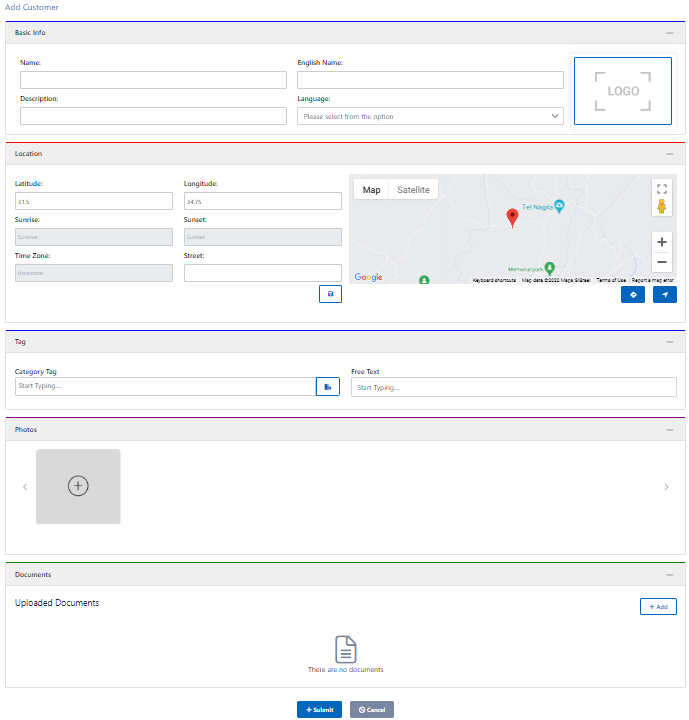
Similarly, you can edit customer details and can also delete any customer.
Areas
An Area is a location that can have multiple sites in it.
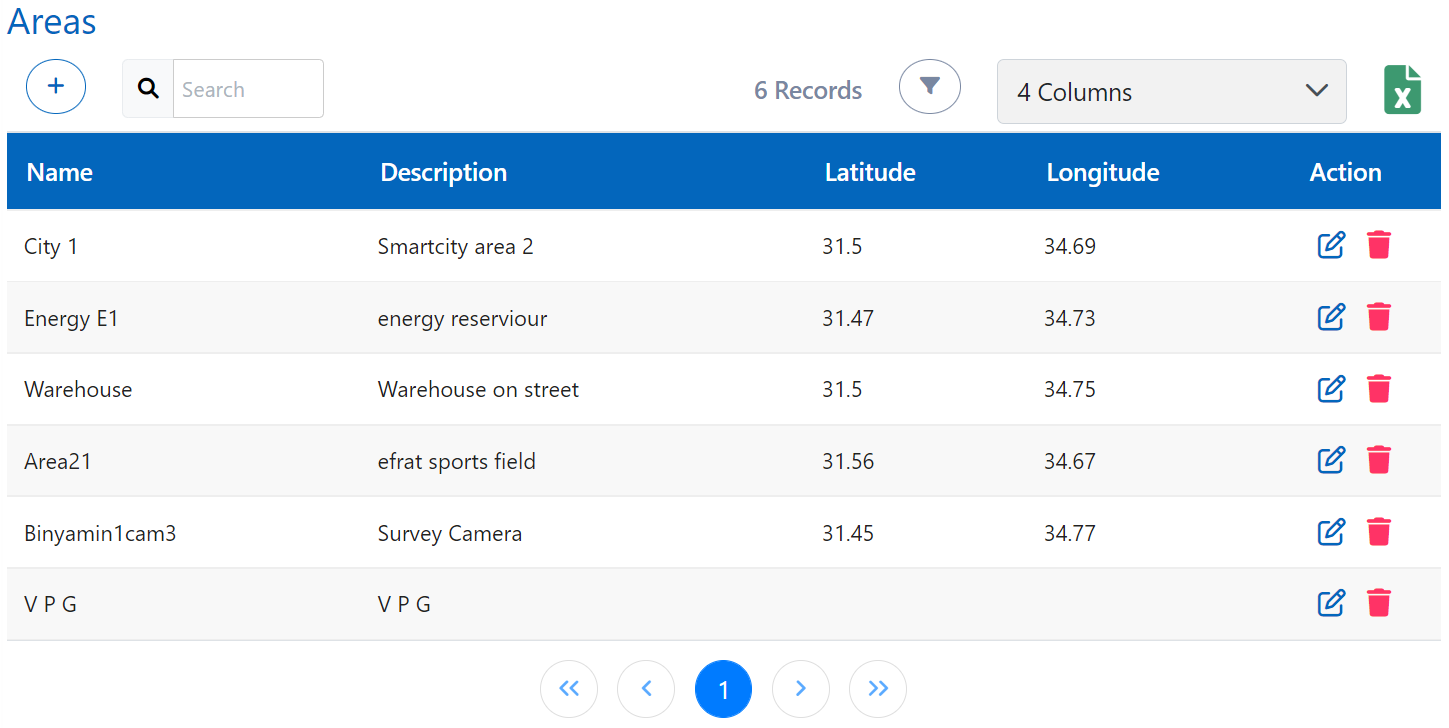
How to add an area?
You can add an area and the required details are:
Basic Info:
- Name: You have to give a name for the area and it is mandatory
- Description: You have to describe the area and it is mandatory
- English Name: You have to give the English translation for the name of the area
- Customer: You have to choose under which customer this area comes
- Logo: You can add a logo to aid and promote identification and recognition
Location - You can select the location of the area from the map or can input it with the help of latitude & longitude. You can also provide any additional address in the street textbox (minimum 10 characters)
Photos - You can add photos related to the area
Documents - You can add documents related to the area
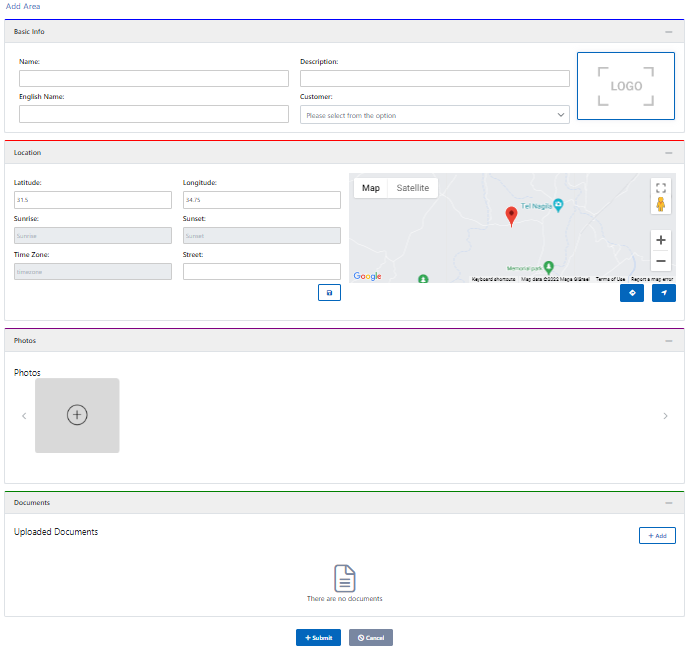
Similarly, you can edit area details and can also delete any area.
Sites
A Site is a specific location within an area where the installation has been done or has to be done. Or you can say it is the location where the services are being provided.
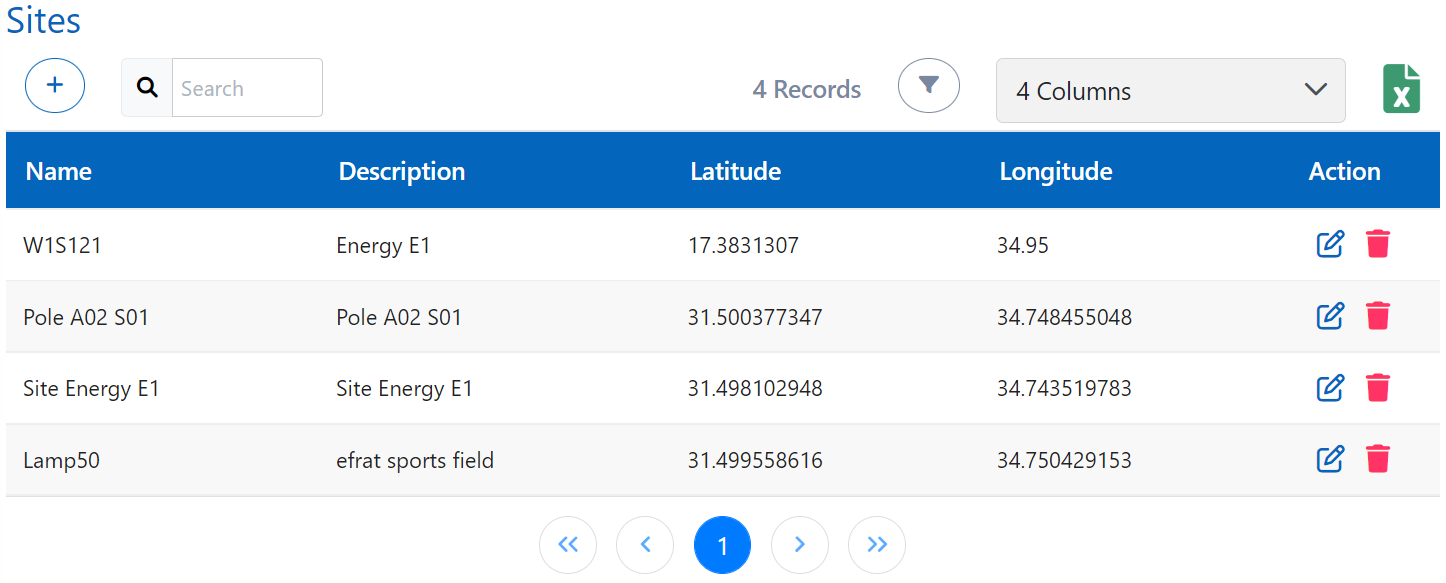
How to add a site?
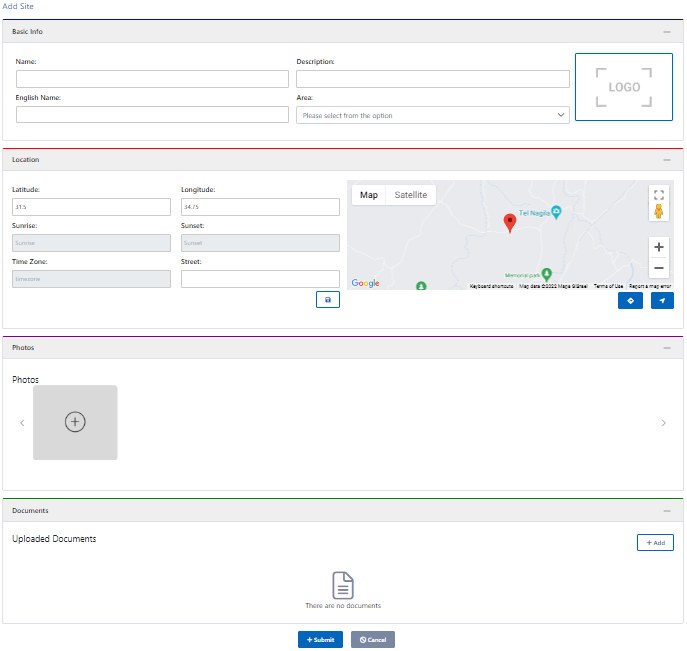
You can add a site and the required details are:
Basic Info:
- Name: You have to give a name for the site and it is mandatory
- Description: You have to describe the site and it is mandatory
- English Name: You have to give the English translation for the name of the site
- Area: You have to choose in which area is the site located
- Logo: You can add a logo to aid and promote identification and recognition
Location - You can select the location of the site from the map or can input it with the help of latitude & longitude. You can also provide any additional address in the street textbox (minimum ten characters)
Photos - You can add photos related to the site
Documents - You can add documents related to the site
Similarly, you can edit site details and can also delete any site.