System Admin
What is System Admin?
A system administrator, or system admin, or the admin is a person who is responsible for the upkeep, configuration, and reliable operation of the application.
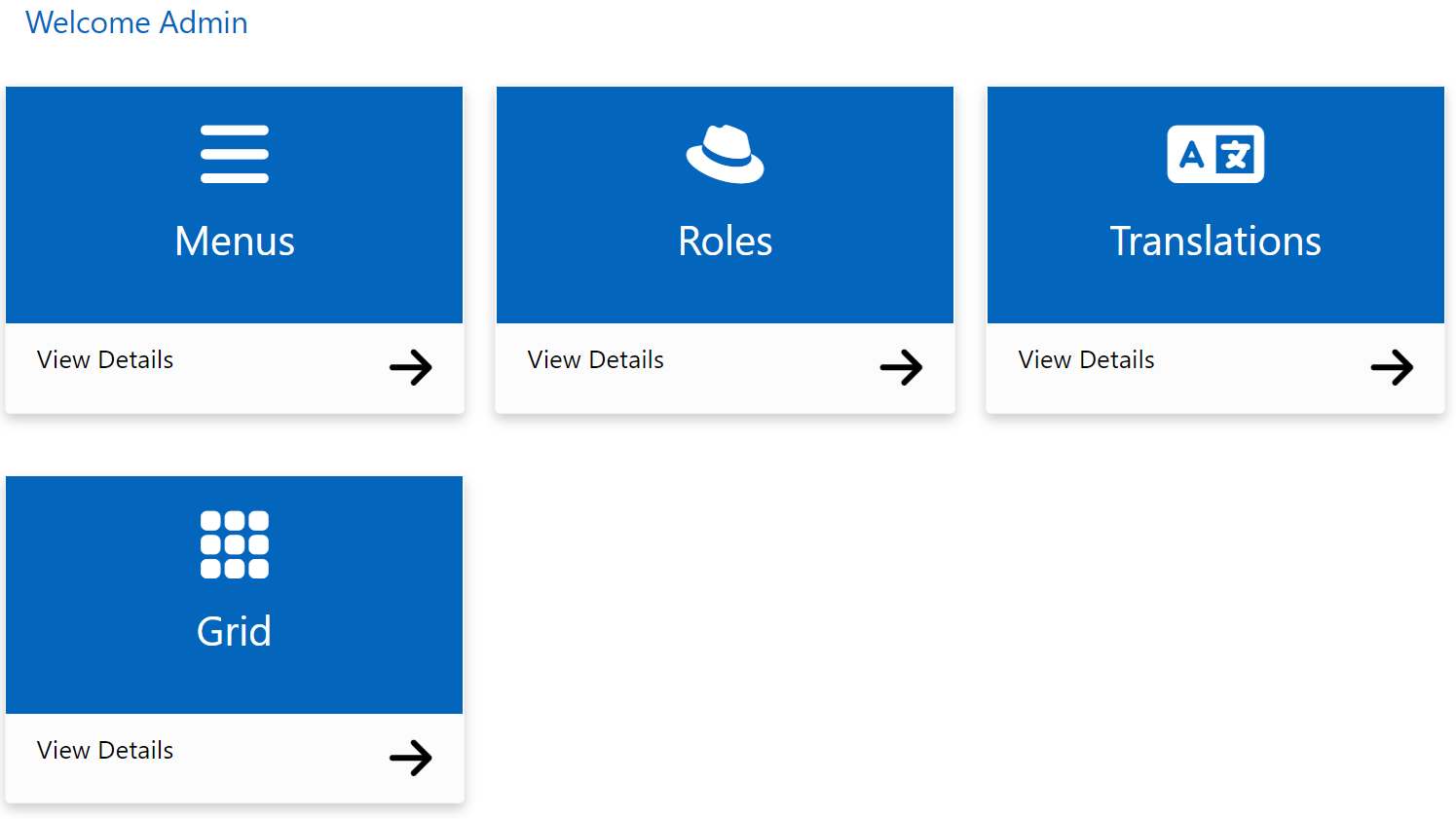
What is Menu?
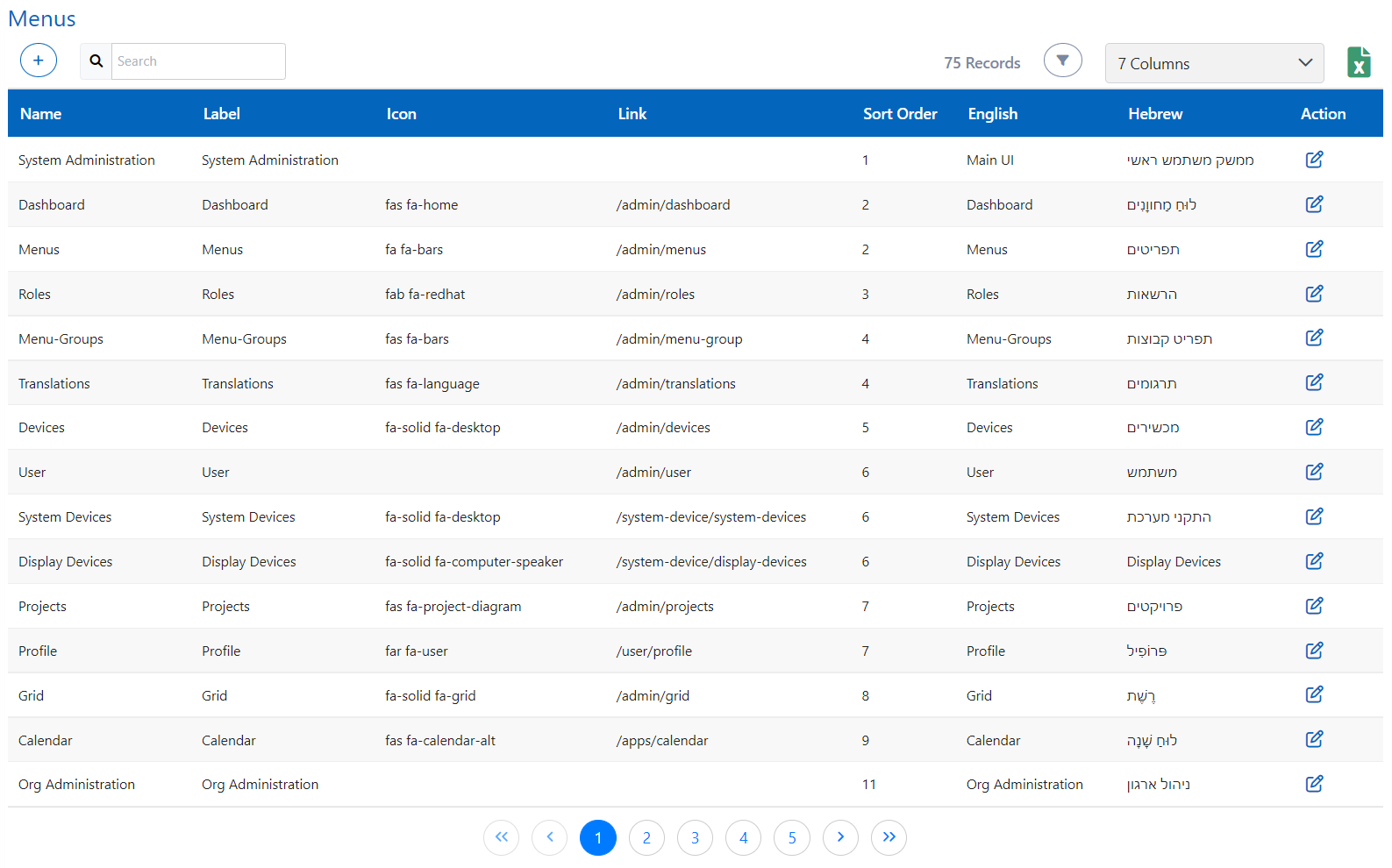
The Menu here refers to the sidebar menus of the application at any hierarchy.
You can add a menu, edit/search the existing menus, and even also download an excel file containing the list of all existing menus in the Smart application.
How to add a menu?
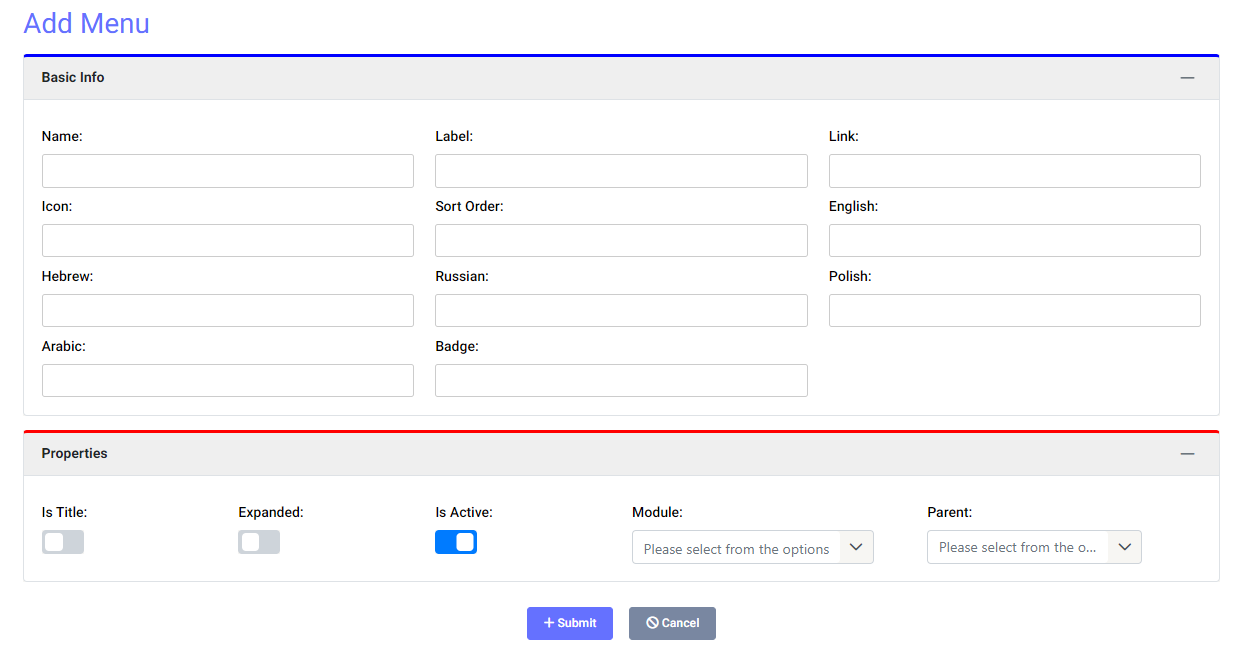
You can add a menu by clicking on add and a menu can be added for any module present in this application.
The details required for adding the menu are:
- Name: Provide a name to the menu for your understanding and it will not be displayed anywhere in the application
- Label: Enter the name which you want to be shown in the side-bar menu of the application for this menu
- Link: Enter the link of the screen to which the menu will take after clicking on it
- Icon: Enter the name of the icon which you want to give this menu to display along with name (name refers to the class-name of that icon on font-awesome website)
- Sort Order: It helps in arranging the menus in the menu list. Smaller the value, Higher is the priority and will be shown above others which have larger value. If two menu have same sort order then the one which was added first will be shown above of the other one.
- English, Hebrew, Russian, Polish, Arabic: Enter the translation of the Label in respective languages
- Module: Select that module in which you want to add the menu
- Parent: Select the parent heading under which you want to add the menu. Before selecting the parent, you must select the module first
- IsActive: Select only if you want the menu to be currently active/working
- Expanded: Select only if you want the menu to be expandable
- IsTitle: Select only if you want this menu to be a parent
How to edit a menu?
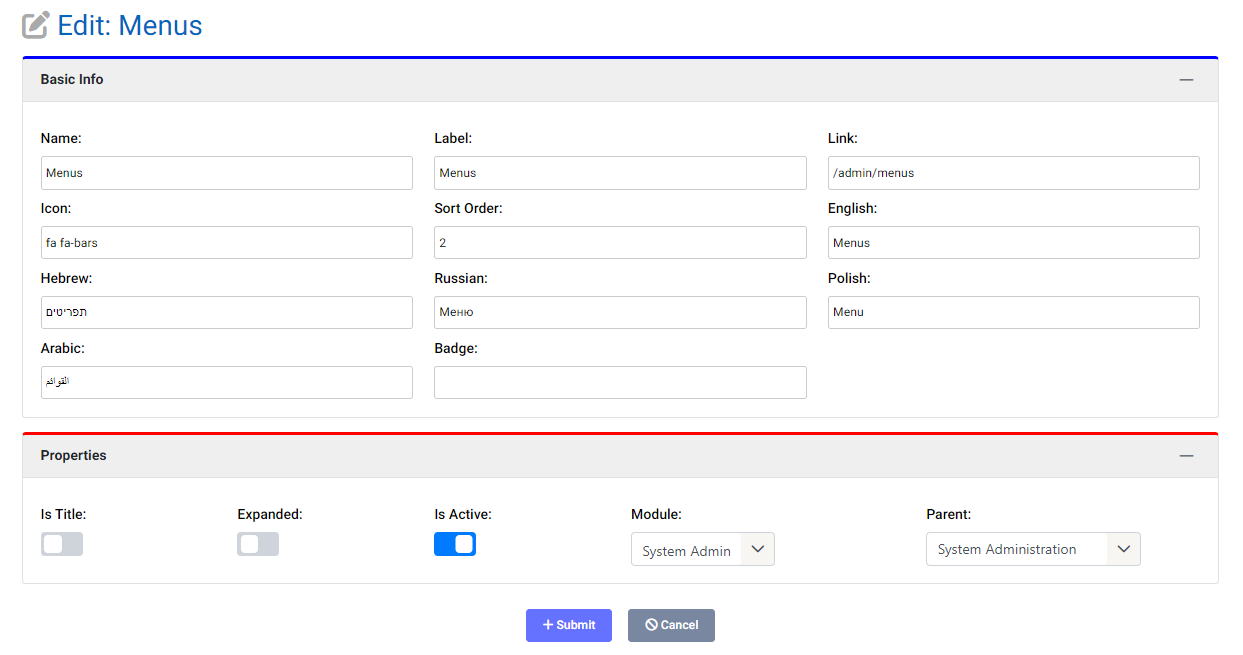
You can edit any existing menu in the application by using the Edit Menu option. With the help of Edit Menu, you can change any information or property of that particular menu.
What is a Role?
The Role is a position in the Hierarchy defined by the System Administrator such as Manager, User, Inventory Admin, Project Manager, General User, Customer, etc.
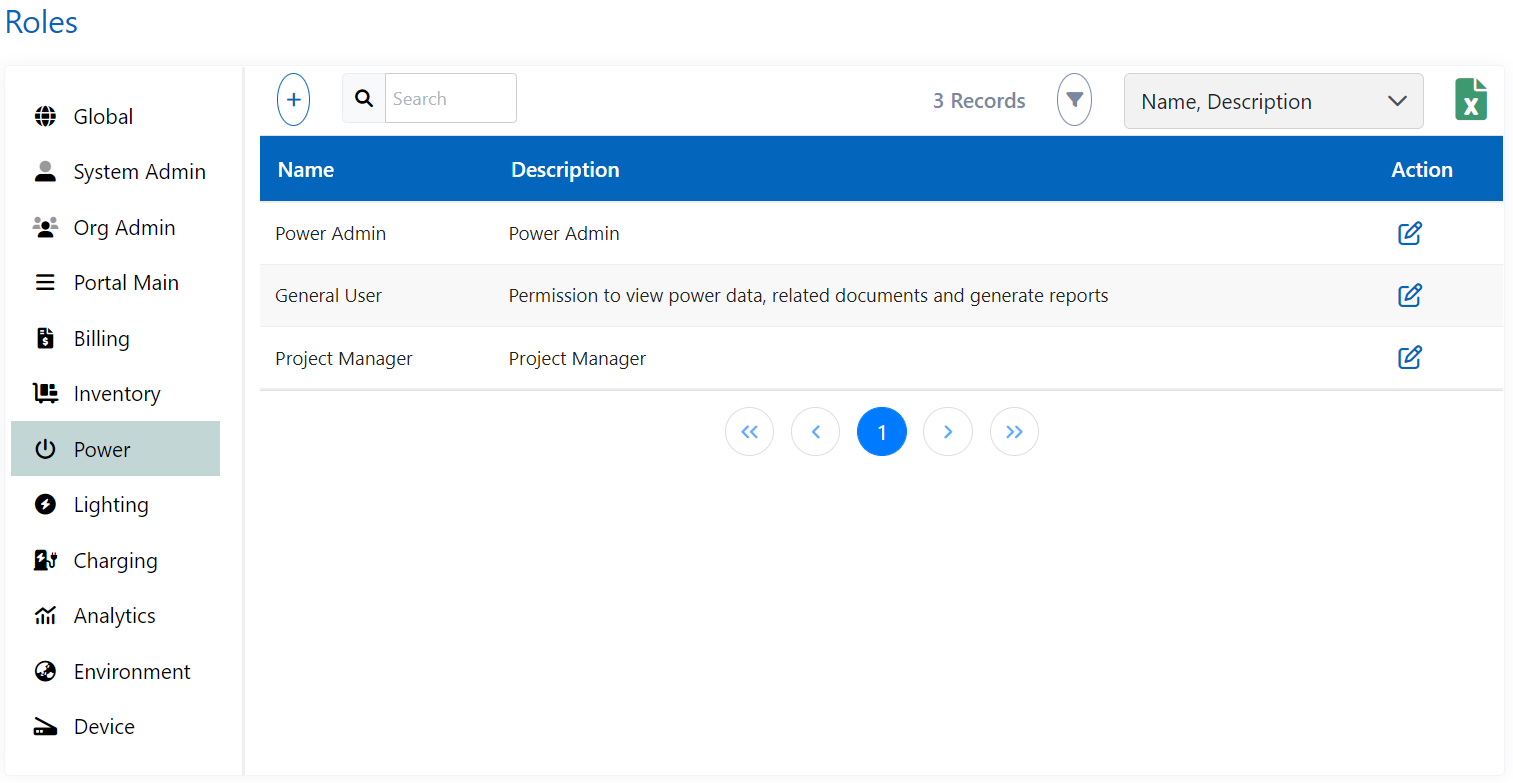
How to add a role?
Smart Application is completely configurable by the Admin. You can add a role in the application and role creation, you have to define the menus which will be accessible to that role.
You also have to configure the claims, i.e., the access rights, for that role such as viewing/editing/deleting any data, Translations Setting, Tag Setting, Add new user, Approve user requests, etc.
And you also need to select the Module for which role is being created and a description of the role for better understanding.
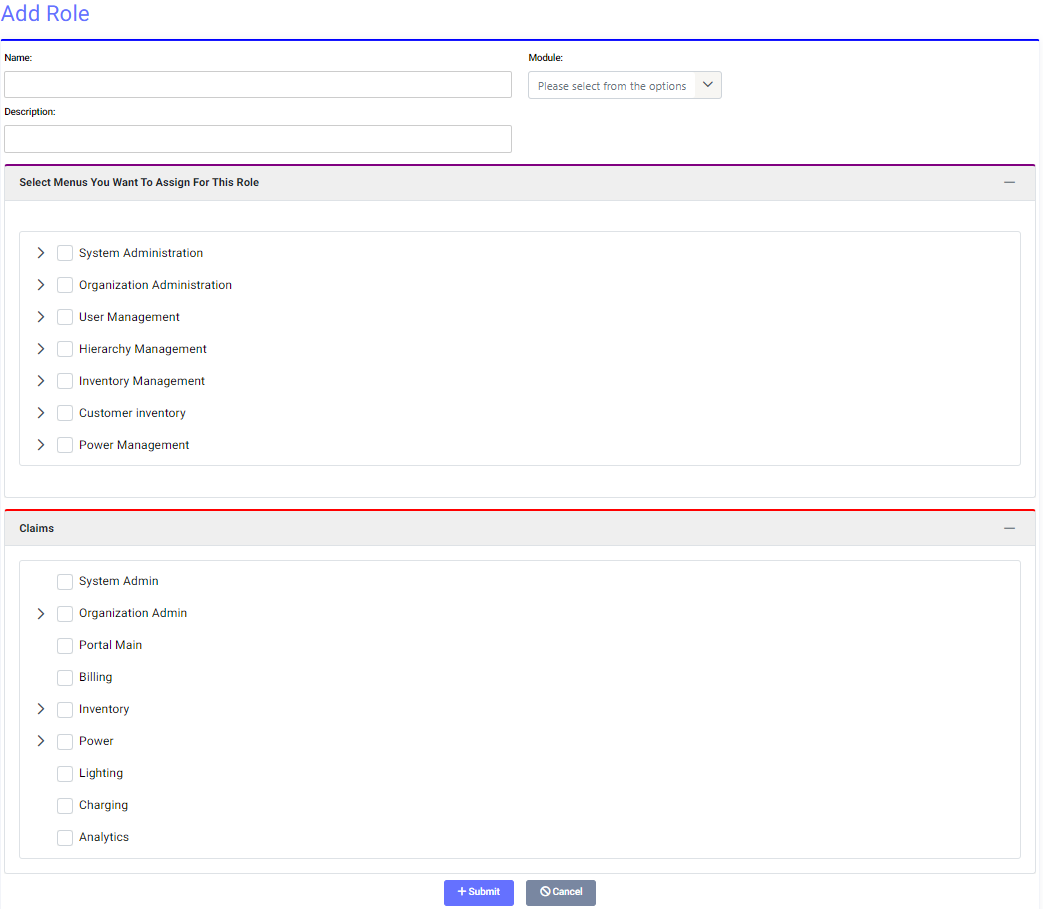
Claims: These are the access rights of any particular role defined by the Admin. Some of the claims are Add new Customer, Edit Customer Info, Set Customer Hierarchy level, Add new User, Reset User Password, Edit User Info, Approve User Requests, View/Add/Edit/Delete Warehouse, View/Add/Edit/Delete Inventory, View/Add/Edit/Delete Inventory Item, View/Add/Edit/Delete Certificate, View/Add/Edit/Delete Manufacturer.
How to edit a role?
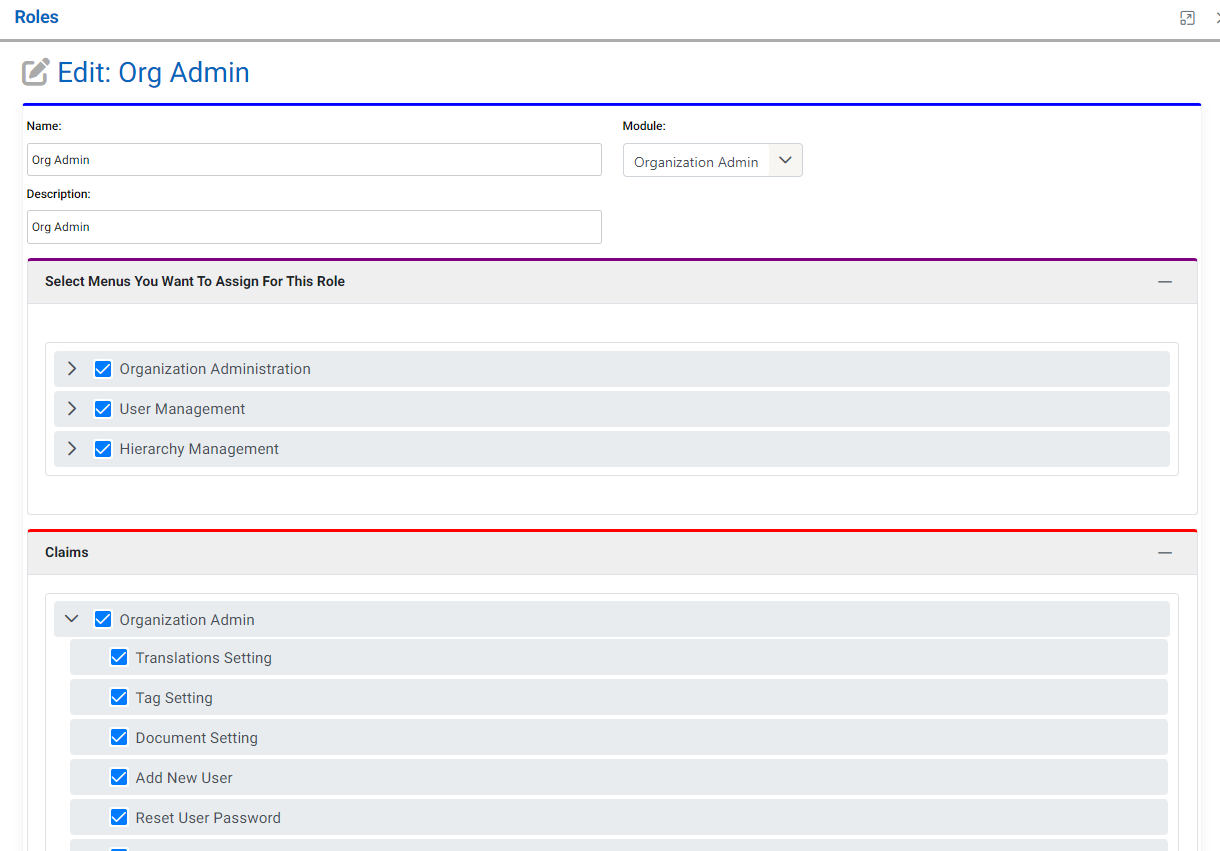
If you want to edit any existing role in the application then Edit Role will help you in doing this. With the help of Edit Menu, you can also reassign the menus and claims for that role.
What are Translations?
As the name suggests, you can configure the translations of the application.
For example, if someone wants to use the application in the Hebrew language then the translations have to be defined by the Admin beforehand here.
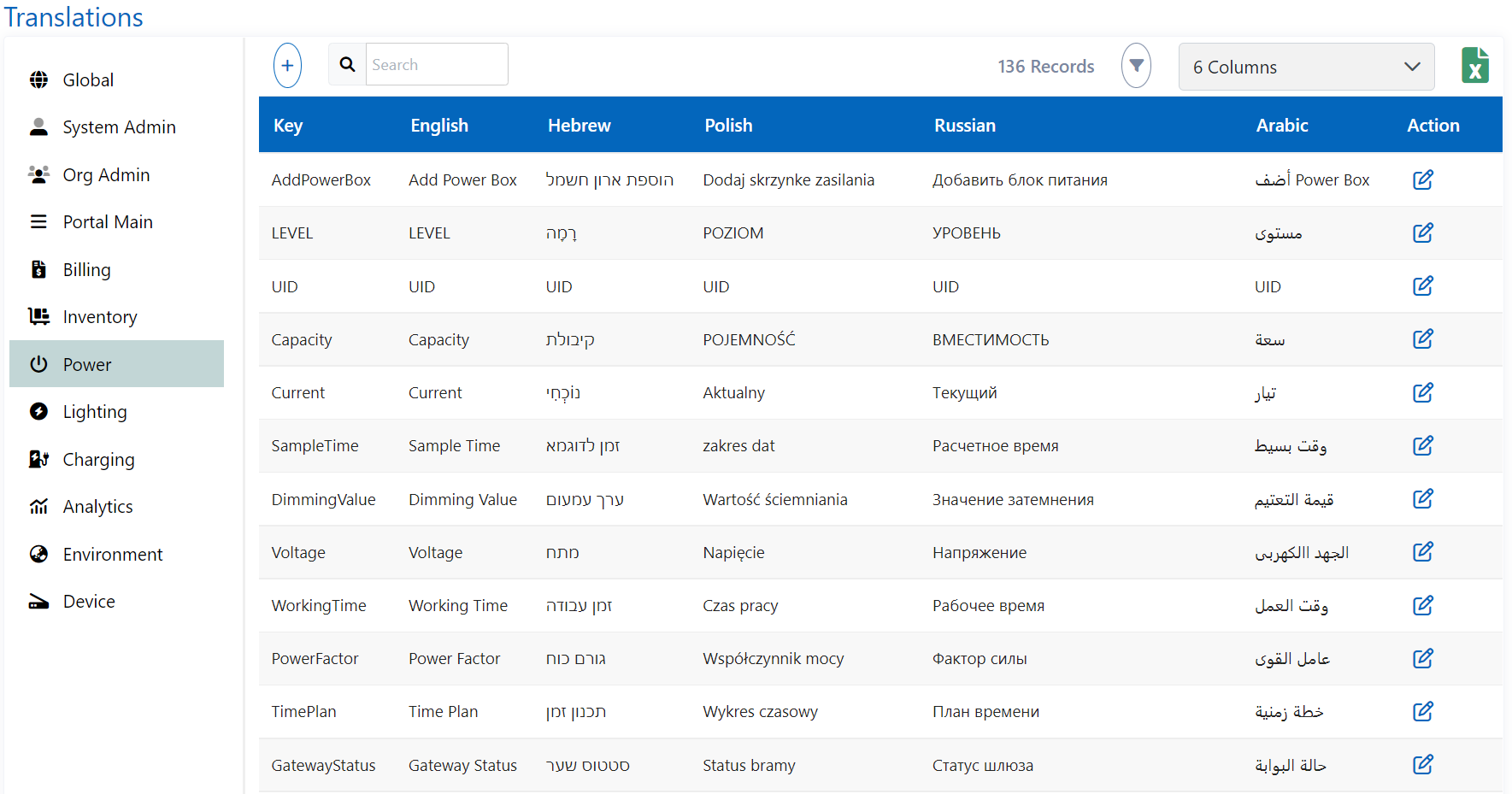
How to add a translation?
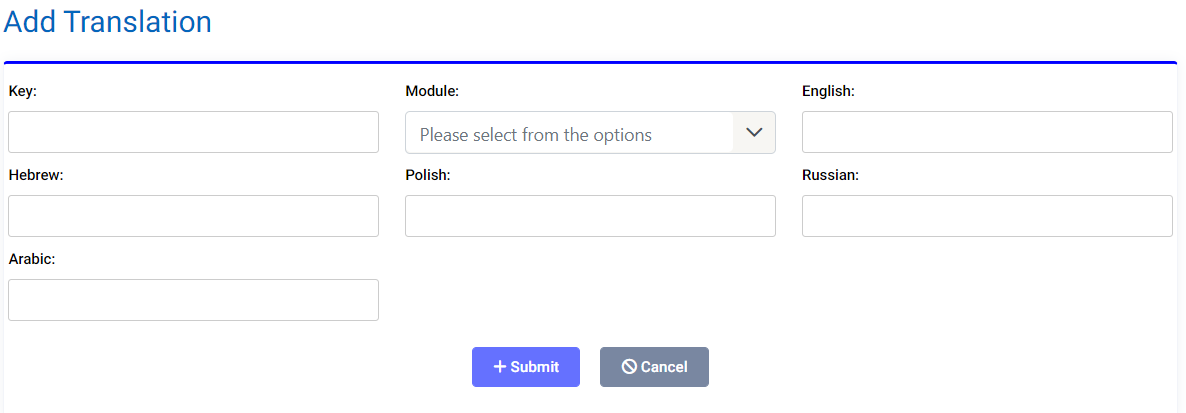
You can add a translation in the application and the details required are:
- Key: It is a unique identity and it should not contain any spaces in it.
- Module: You must select that module where you want to add the translation.
- English, Hebrew, Russian, Polish, Arabic: Enter the translation in the respective languages
How to edit a translation?
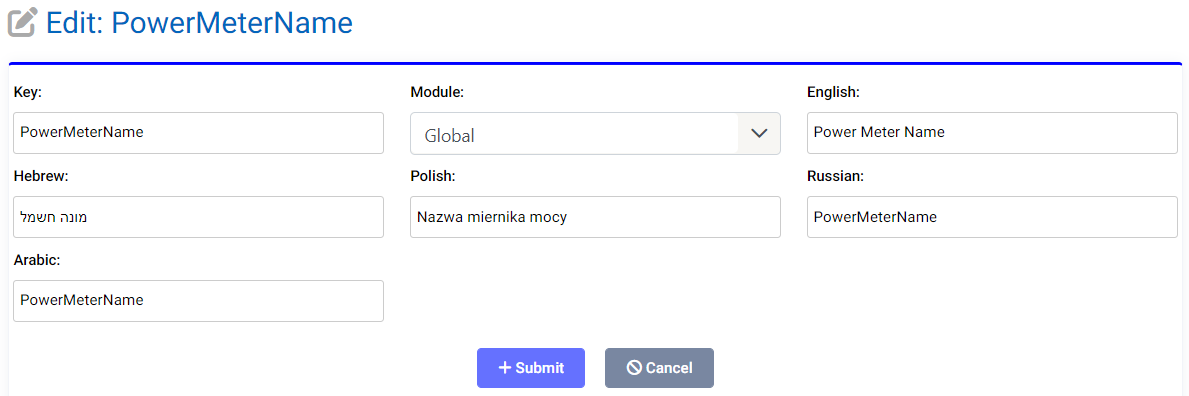
You can edit existing translations by changing their Module, and changing its translations.
What are Grid Columns?
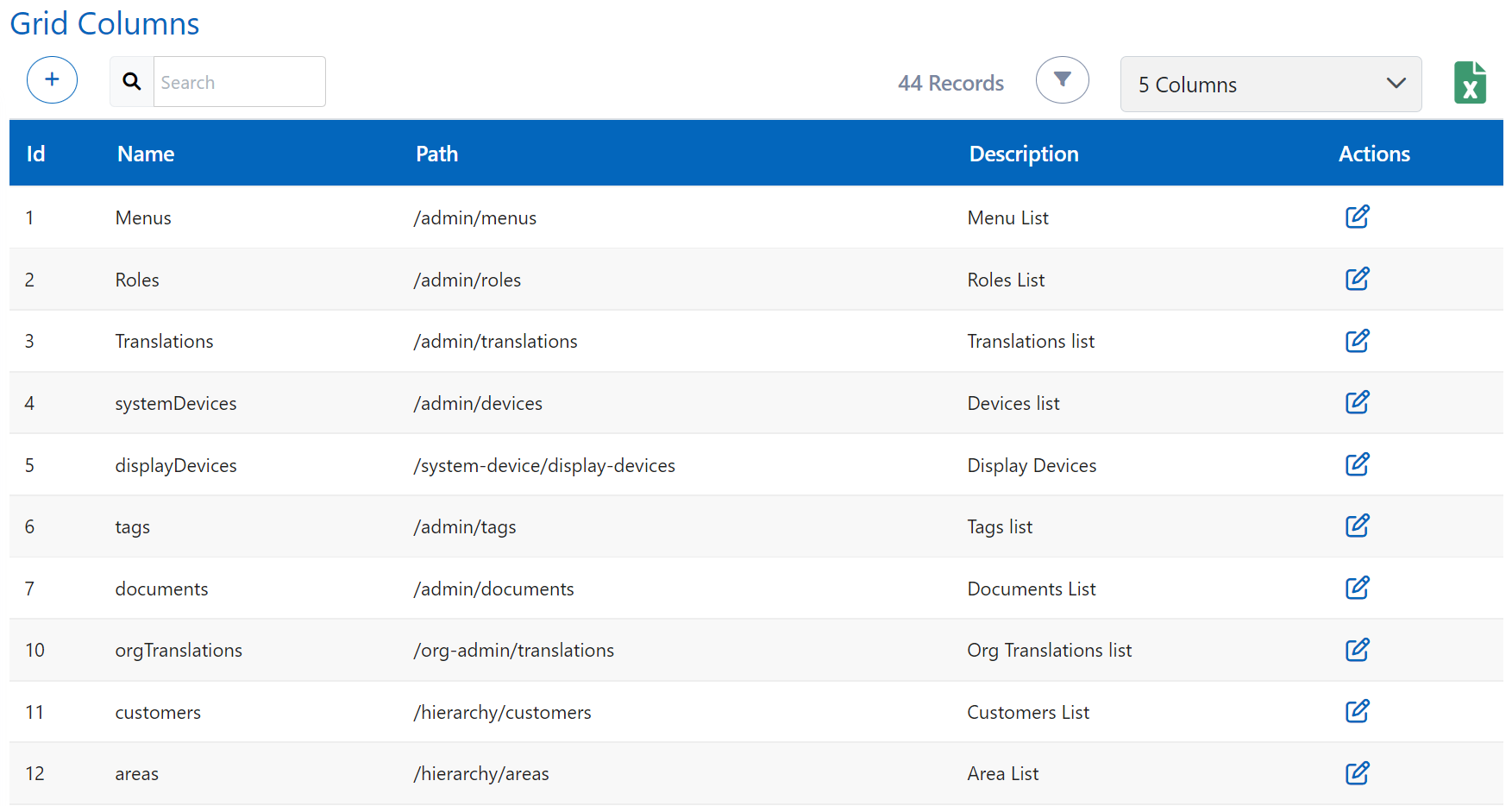
Here, you can see the list of all menus which have grid columns representation and can edit their grid.
How to add Grid Columns?
Grid Columns can be added easily just by providing the following details:-
- Name: Enter the name for the grid screen to be showed above the grid as heading.
- Path: Enter the path of the screen where the grid you need to use.
- Description: It is for self understanding about the grid which is being created.
- Add Column: Click the add(+) icon to add column and give the filter type, type, IsSelected, Width etc. for the grid column properties.
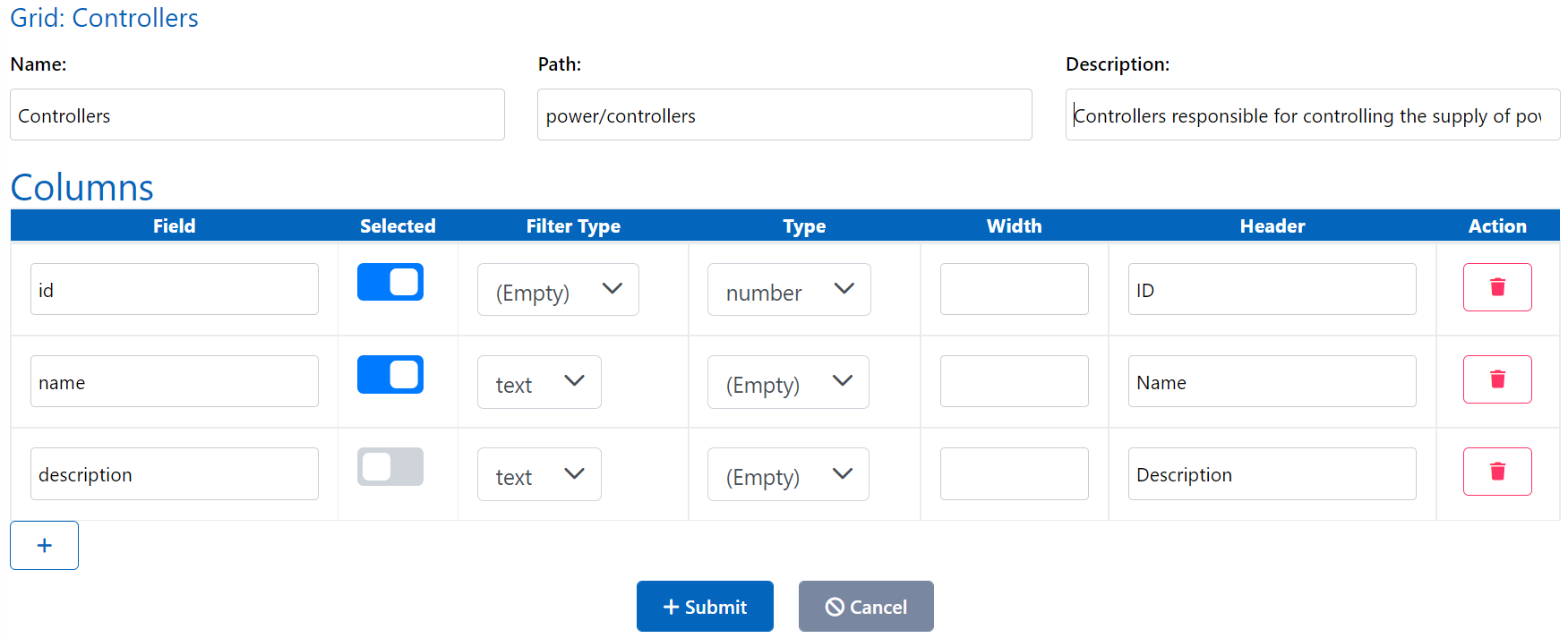
Editing the Grid: You can edit the grid in the same way, grid was created. Find the grid in the list of grids and click on edit in action column.